Learn about the GrabCAD Platform
Get to know GrabCAD as an open software platform for Additive Manufacturing
Visit our new homepage
Home
Control
Shop
Streamline Pro
Partner Program
Print
Community
Log in
Library
Challenges
Groups
Questions
Tutorials
Engineers
Blog
Log in
Learn from thousands of free Tutorials.
New user?
Join the community
or
log in.
Tutorials
Most liked all time
Recent
Most liked
Most viewed
Most commented
This week
This month
All time
Category
Design & CAD
Modeling
Drafting
Assemblies
BOM
Dimensioning / Tolerancing
Translations
Manufacturing & CAM
3D Printing
Tooling
NC Machining
Composites
Measurement / Inspection
Simulation & CAE
FEM
CFD
Kinematics
Process Simulation
Engineering Fundamentals
Theory
Process
Standards
Other
Software
Snagit
Alibre Design
ArchiCAD
AutoCAD
AutoCAD Electrical
Autodesk 3ds Max
Autodesk Alias
Autodesk Inventor
Autodesk Maya
Autodesk Revit
Autodesk 123D
BricsCAD
Bentley MicroStation
BlenderCAD
BobCAD-CAM
CATIA
Delmia
DraftSight
FreeCAD
Femap
Fusion 360
Geomagic Design
IronCAD
JT
Kompas-3D
KeyCreator
KeyShot
Lagoa
Luxology
Mastercam
Moi3D
NX Unigraphics
OBJ
Onshape
OpenSCAD
Parasolid
Powermill
Powershape
Pro/Engineer Wildfire
PTC Creo Parametric
PTC Creo Elements
Rhino
SpaceClaim
SOLIDWORKS
solidThinking Evolve
Solid Edge
SolidFace
STEP / IGES
SketchUp
STL
TopSolid
TinkerCAD
T-Flex CAD
TurboCAD
VectorWorks
ViaCAD 3D
VRML / WRL
ZW3D
GrabCAD Print
Rendering
GrabCAD Community
GrabCAD Workbench
Text file
3D Manufacturing Format
Cinema 4D
Other
Skill level
All levels
Beginner
Intermediate
Expert
Drafting
×
Process Simulation
×
AutoCAD
×
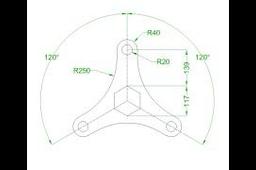
Tutorial on AutoCAD Practice Design #32 | 2D Drafting
Ismail A Mohammed
in
Drafting
1
0
Beginner
In this AutoCAD video tutorial for beginners will guide you step by step to design the object.
AutoCAD
cad
tutorial
drafting
2d
autocad
What is Isometric Drafting? (AutoCAD)
Karajko CAD
in
Drafting
1
0
Intermediate
In this tutorial I am going to show you the basic of Isometric drafting in AutoCAD
AutoCAD
autocad
planes
drafting
isometric
Threads Made easy
Robert Higgins
in
Drafting
1
0
Intermediate
How to create threads for bolts or other screw type usage.
AutoCAD
drives
screw
screws
threads
bolts
user interface of autocad
civilmadesimple
in
Drafting
1
0
Beginner
In this video let us see the user interface of autocad
AutoCAD
introduction
autocad
interface
user
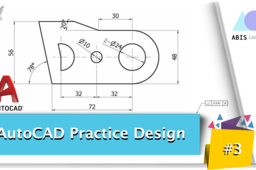
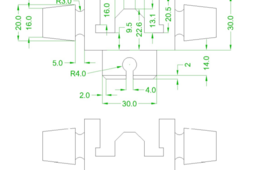
Tutorial on AutoCAD Practice Design #3 | 2D Drafting
Ismail A Mohammed
in
Drafting
1
0
Beginner
In this AutoCAD video tutorial for beginners will guide you step by step to design the object.
AutoCAD
tutorial
drafting
2d
autocad
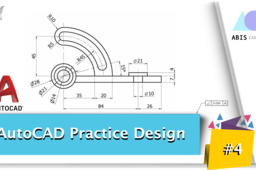
Tutorial on AutoCAD Practice Design #4 | 2D Drafting
Ismail A Mohammed
in
Drafting
1
0
Beginner
In this AutoCAD video tutorial for beginners will guide you step by step to design the object.
AutoCAD
tutorial
drafting
2d
autocad
Tutorial on AutoCAD Practice Design #6 | 2D Drafting
Ismail A Mohammed
in
Drafting
1
0
Beginner
In this AutoCAD video tutorial for beginners will guide you step by step to design the object.
AutoCAD
tutorial
drafting
2d
autocad
Tutorial on AutoCAD Practice Design #8 | 2D Drafting
Ismail A Mohammed
in
Drafting
1
0
Beginner
In this AutoCAD video tutorial for beginners will guide you step by step to design the object.
AutoCAD
tutorial
drafting
2d
autocad
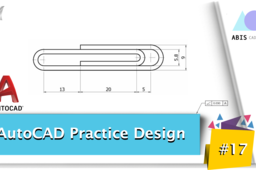
Tutorial on AutoCAD Practice Design #17 | 2D Drafting
Ismail A Mohammed
in
Drafting
1
0
Beginner
In this AutoCAD video tutorial for beginners will guide you step by step to design the object.
AutoCAD
tutorial
drafting
2d
autocad
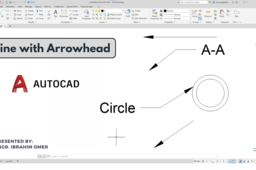
Line with Arrowhead | AutoCAD Arrowhead Command | Draw Line with Arrowhead | AutoCAD Leader Command
Ibrahim Omer
in
Drafting
1
0
Beginner
Line with Arrowhead | AutoCAD Arrowhead Command | Draw Line with Arrowhead | AutoCAD Leader Command Hi friends, welcome back to CADable! This is Engr. Ibrahim Omer. In this short tutorial, I’ll show you how to use an arrowhead with and without text in AutoCAD. At the start of the tutorial, I’ve shared some examples where you can use a leader, such as in mechanical parts, floor plans, electrical drawings, schematic drawings, and more. Chapters of the tutorial: Use of arrowhead in AutoCAD 0:00 AutoCAD basic settings 0:19 Arrowhead 1st example 0:32 Change arrowhead size 0:55 Arrowhead example with text 1:14 Another arrowhead example with text 1:37 Arrowhead without text 2:00 Conclusion 2:30 That's it for today's tutorial! I really hope you find it useful. If you have any questions or need help, please drop a comment below. I love hearing from you. Don't forget to subscribe for more fun and informative videos. I also make tutorials, Shorts, and even quizzes and polls to help refresh your memory, learn new things, or just revisit the basics. #LinewithArrowhead #AutoCADArrowheadCommand #DrawLinewithArrowhead #AutoCADLeaderCommand #CADable #AutoCADLinewithArrowhead #cadabletutorials Watch Tutorial: https://youtu.be/XHo_5iDrxgI
AutoCAD
cadable
autocad leader
autocad arrowhead command
line with arrowhead in autocad
Autocad basics
Akhil k kumar
in
Drafting
1
2
Beginner
Done in autocad basics https://youtu.be/eUHo-km_FWE
AutoCAD
autocad
Logo TRANSFORMER in AutoCAD
Solidworks 3D & AutoCAD 2D
in
Drafting
1
1
Intermediate
Thank you very much for watching !! Don't forget like and subscribe my channel to support me.
AutoCAD
AutoCAD - Complete Tutorial for Beginners - Exercises 9
MRCAD
in
Drafting
1
0
Expert
COMPLET COUESH FOR 100 EXERCISEC FUNCTION KEY:- Ø ESC : To cancel Command Ø F1 : Autocad Help Ø F2 : Text Window on/off To see recently used command, options, Points. Ø F3 : Osnap button on/off. Ø F4 : Tablet on/off (Autocad 2010 & Prior Versions) 3DOSNAP ON/OFF (Autocad 2011 & Autocad 2012) Ø F5 : To change isoplane in isometric drawing. Ø F6 : DUCS (Dynamic user co-ordinate system) button on/off. Ø F7 : Grid button on/off. By default grid spacing is 0.5 inch in X- direction and Y direction. Ø F8 : Ortho button on/off. Ø F9 : Snap button on/off If snap button is on mode from status bar than cursor will be Jump on the graphic one dot to another dot. Ø F10 : Polar button on/off. (Alternate off ortho button) Ø F11 : Otrack button on/off. (object snap tracking) Ø F12 : DYN button on/off. (Dynamic input) Short cut keys:- Ø Ctrl+A : select all Ø Ctrl+B : Snap on/off Ø Ctrl+C : Copy objects to clipboard Ø Ctrl+D : Dynamic UCS (DUCS) on/off Ø Ctrl+E : To change isoplane in isometric Ø Ctrl+F : Osnap on/off Ø Ctrl+G : Grid on/off Ø Ctrl+H : Set variable Ø Ctrl+I : Co-ordinate on/off Ø Ctrl+J : Repeat Last Command Ø Ctrl+K : Hyperlink Command Ø Ctrl+L : Ortho on/off Ø Ctrl+M : Repeat Last Command Ø Ctrl+N : To create new autocad file Ø Ctrl+O : To open autocad file Ø Ctrl+P : To print/plot autocad file Ø Ctrl+Q : To Quit/Exit from autocad Ø Ctrl+R : To cycle between viewports Ø Ctrl+S : To save autocad file Ø Ctrl+T : Tablet on/off Ø Ctrl+U : Polar on/off Ø Ctrl+V : Paste objects from clipboard Ø Ctrl+W : Otrack on/off (Autocad 2010 & prior ver.) Ø Ctrl+W : Selection cycling on/off (New Autocad 2011) Ø Ctrl+X : Cut objects to clipboard Ø Ctrl+Y : Redo Ø Ctrl+Z : Undo Ø Ctrl+0 : Clean Screen Ø Ctrl+1 : Properties Ø Ctrl+2 : Autocad design center Ø Ctrl+3 : Tool Palettes Ø Ctrl+4 : Sheet set Manager Ø Ctrl+5 : Info palette ( not working from Acad2008) Ø Ctrl+6 : Database Connect Ø Ctrl+7 : Markup set manager Ø Ctrl+8 : Quick calculator Ø Ctrl+9 : Show /Hide Commandline Window Ø Ctrl+Shift+C : Copy objects With basepoint Ø Ctrl+Shift+E : Presspull Command Ø Ctrl+Shift+H : Show /Hide Commandline window Ø Ctrl+shift+P : Quick properties Ø Ctrl+Shift+S : Save as Autocad file Ø Ctrl+Shift+V : Paste as block #Complete Tutorial for Beginners #AutoCAD - SolidWorks Beginners Tutorials - SolidWorks Sketching - SolidWorks Surface - SolidWorks Weldments - SolidWorks Assembly - SolidWorks Drawing - SolidWorks Sheet Metal - SolidWorks Mold Design - SolidWorks Simulation - SolidWorks Motion please subscribe our channel for more videos & projects in solidworks & dont forget to hit like & share the videos, thanks for watching.
AutoCAD
beginners
tutorial
complete
autocad
AutoCAD - Complete Tutorial for Beginners - Exercises 19
MRCAD
in
Drafting
1
0
Expert
COMPLET COUESH FOR 100 EXERCISEC FUNCTION KEY:- Ø ESC : To cancel Command Ø F1 : Autocad Help Ø F2 : Text Window on/off To see recently used command, options, Points. Ø F3 : Osnap button on/off. Ø F4 : Tablet on/off (Autocad 2010 & Prior Versions) 3DOSNAP ON/OFF (Autocad 2011 & Autocad 2012) Ø F5 : To change isoplane in isometric drawing. Ø F6 : DUCS (Dynamic user co-ordinate system) button on/off. Ø F7 : Grid button on/off. By default grid spacing is 0.5 inch in X- direction and Y direction. Ø F8 : Ortho button on/off. Ø F9 : Snap button on/off If snap button is on mode from status bar than cursor will be Jump on the graphic one dot to another dot. Ø F10 : Polar button on/off. (Alternate off ortho button) Ø F11 : Otrack button on/off. (object snap tracking) Ø F12 : DYN button on/off. (Dynamic input) Short cut keys:- Ø Ctrl+A : select all Ø Ctrl+B : Snap on/off Ø Ctrl+C : Copy objects to clipboard Ø Ctrl+D : Dynamic UCS (DUCS) on/off Ø Ctrl+E : To change isoplane in isometric Ø Ctrl+F : Osnap on/off Ø Ctrl+G : Grid on/off Ø Ctrl+H : Set variable Ø Ctrl+I : Co-ordinate on/off Ø Ctrl+J : Repeat Last Command Ø Ctrl+K : Hyperlink Command Ø Ctrl+L : Ortho on/off Ø Ctrl+M : Repeat Last Command Ø Ctrl+N : To create new autocad file Ø Ctrl+O : To open autocad file Ø Ctrl+P : To print/plot autocad file Ø Ctrl+Q : To Quit/Exit from autocad Ø Ctrl+R : To cycle between viewports Ø Ctrl+S : To save autocad file Ø Ctrl+T : Tablet on/off Ø Ctrl+U : Polar on/off Ø Ctrl+V : Paste objects from clipboard Ø Ctrl+W : Otrack on/off (Autocad 2010 & prior ver.) Ø Ctrl+W : Selection cycling on/off (New Autocad 2011) Ø Ctrl+X : Cut objects to clipboard Ø Ctrl+Y : Redo Ø Ctrl+Z : Undo Ø Ctrl+0 : Clean Screen Ø Ctrl+1 : Properties Ø Ctrl+2 : Autocad design center Ø Ctrl+3 : Tool Palettes Ø Ctrl+4 : Sheet set Manager Ø Ctrl+5 : Info palette ( not working from Acad2008) Ø Ctrl+6 : Database Connect Ø Ctrl+7 : Markup set manager Ø Ctrl+8 : Quick calculator Ø Ctrl+9 : Show /Hide Commandline Window Ø Ctrl+Shift+C : Copy objects With basepoint Ø Ctrl+Shift+E : Presspull Command Ø Ctrl+Shift+H : Show /Hide Commandline window Ø Ctrl+shift+P : Quick properties Ø Ctrl+Shift+S : Save as Autocad file Ø Ctrl+Shift+V : Paste as block #Complete Tutorial for Beginners #AutoCAD - SolidWorks Beginners Tutorials - SolidWorks Sketching - SolidWorks Surface - SolidWorks Weldments - SolidWorks Assembly - SolidWorks Drawing - SolidWorks Sheet Metal - SolidWorks Mold Design - SolidWorks Simulation - SolidWorks Motion please subscribe our channel for more videos & projects in solidworks & dont forget to hit like & share the videos, thanks for watching.
AutoCAD
exercisec
100
couesh
complet
19
exercises
autocad
beginners
tutorial
complete
Comando AutoCad Superhatch - hachura com imagens e com blocos
Infinity Projetos Brasil
in
Drafting
1
0
Beginner
VEJA O VÍDEO ABAIXO
AutoCAD
autocad
hachura
superhatch
1
…
4
5
6
…
18