

Tutorial - Creating Blended Protusion in Creo Elements/Pro?


Here is the tutorial.
-
Step 1:
Start Creo Elements/Pro in part mode.

-
Step 2:
Choose Sketch.

-
Step 3:
Select Top Plane.

-
Step 4:
The Sketch mode is displayed.

-
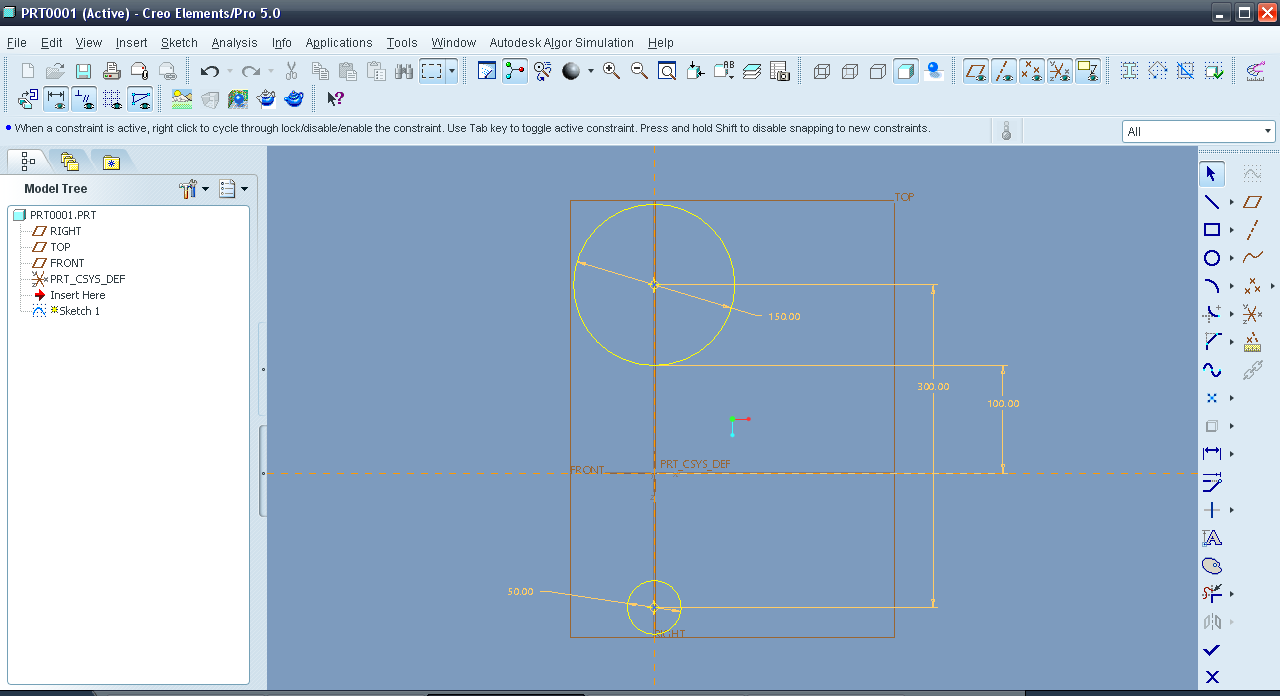
Step 5:
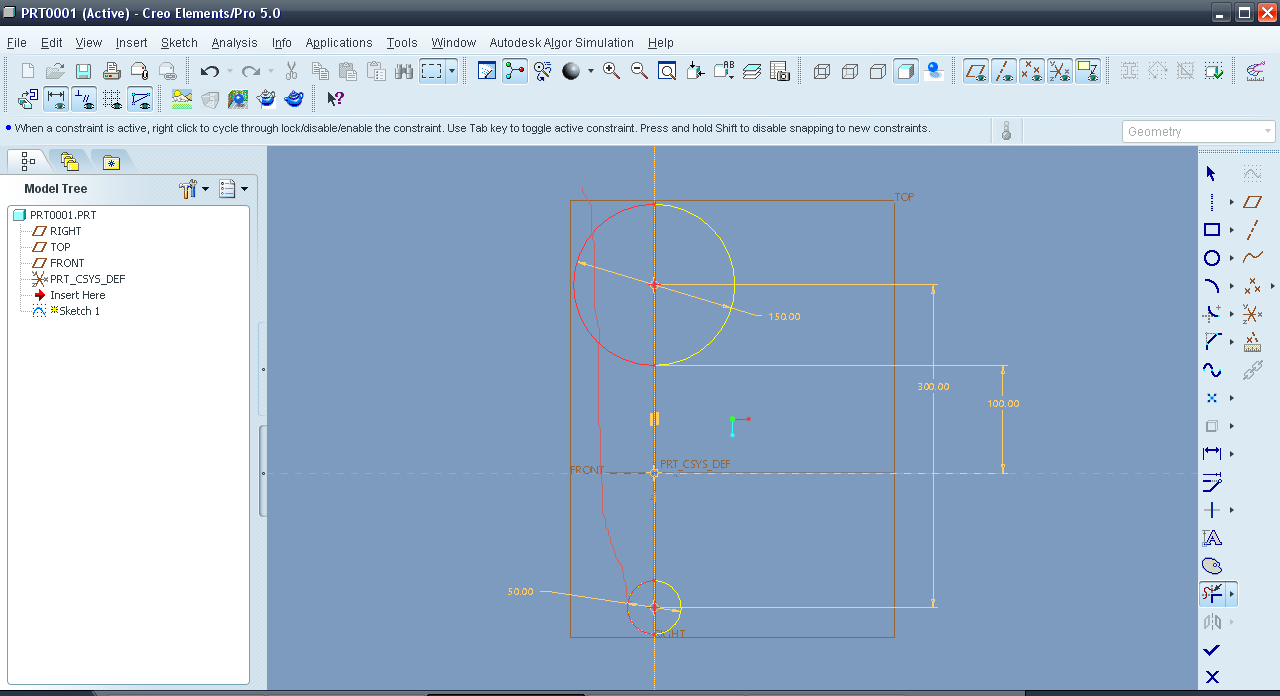
Make 2 circles just like shown in this sketch.
-
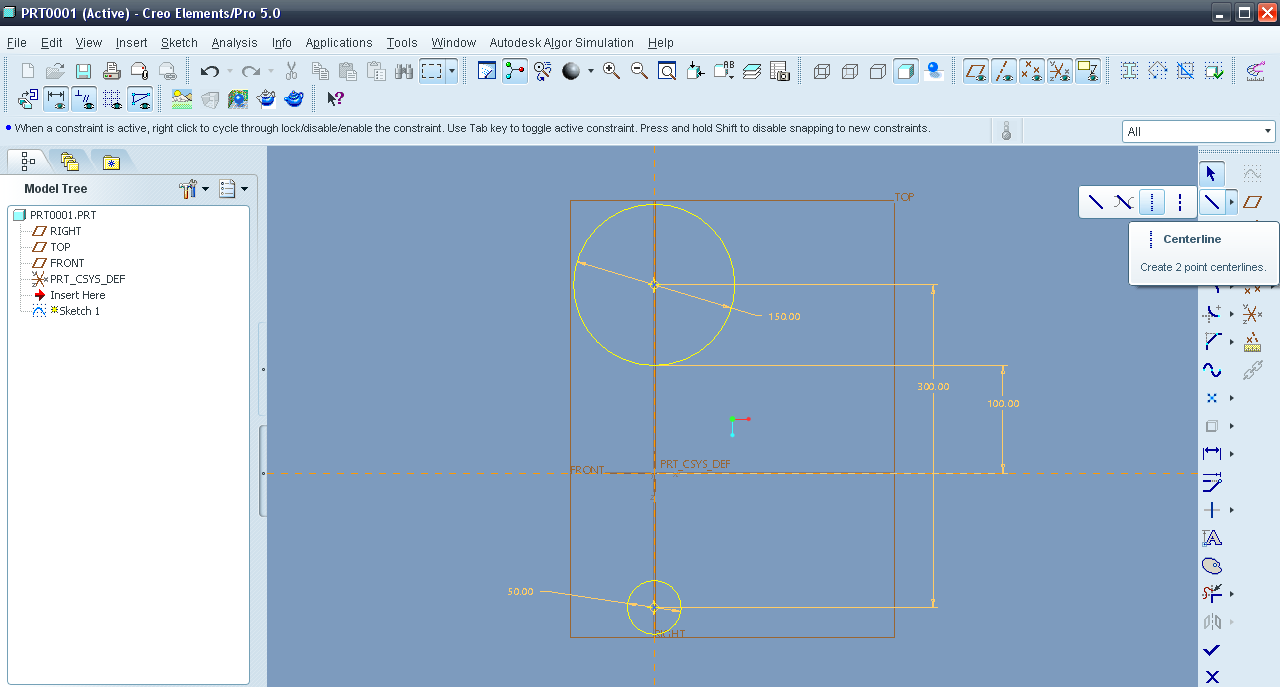
Step 6:
Choose Center line.
-
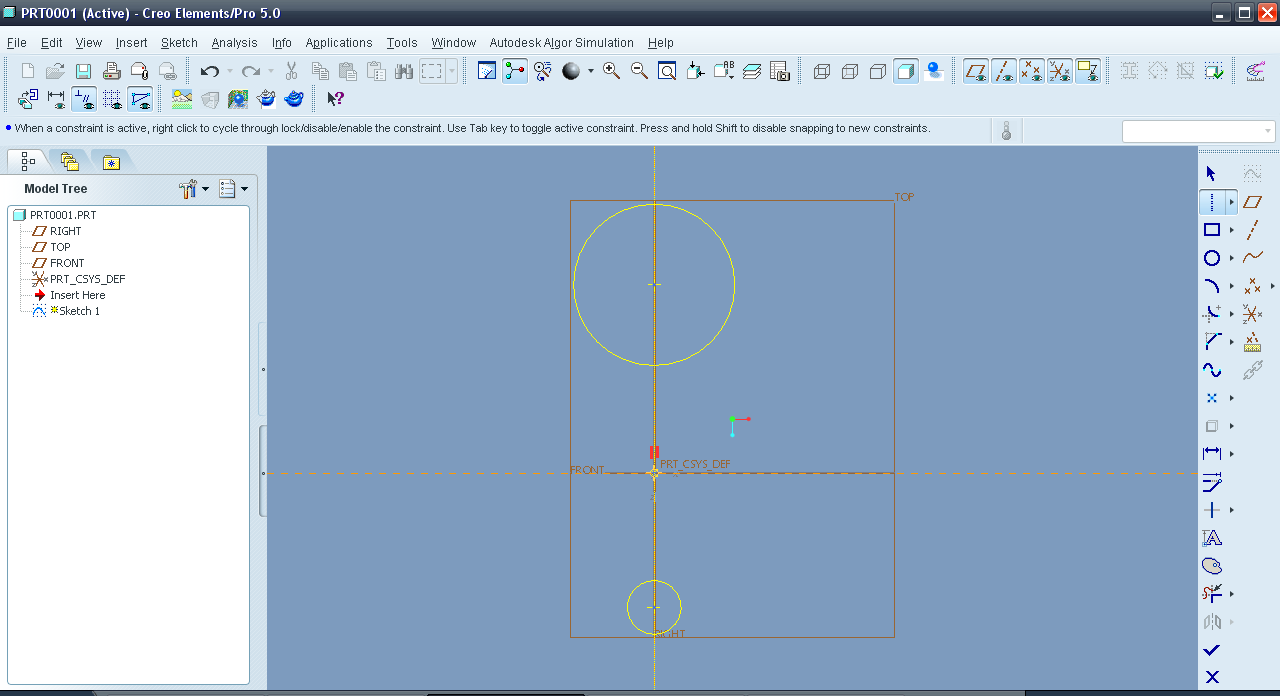
Step 7:
Draw it along Vertical axis.
-
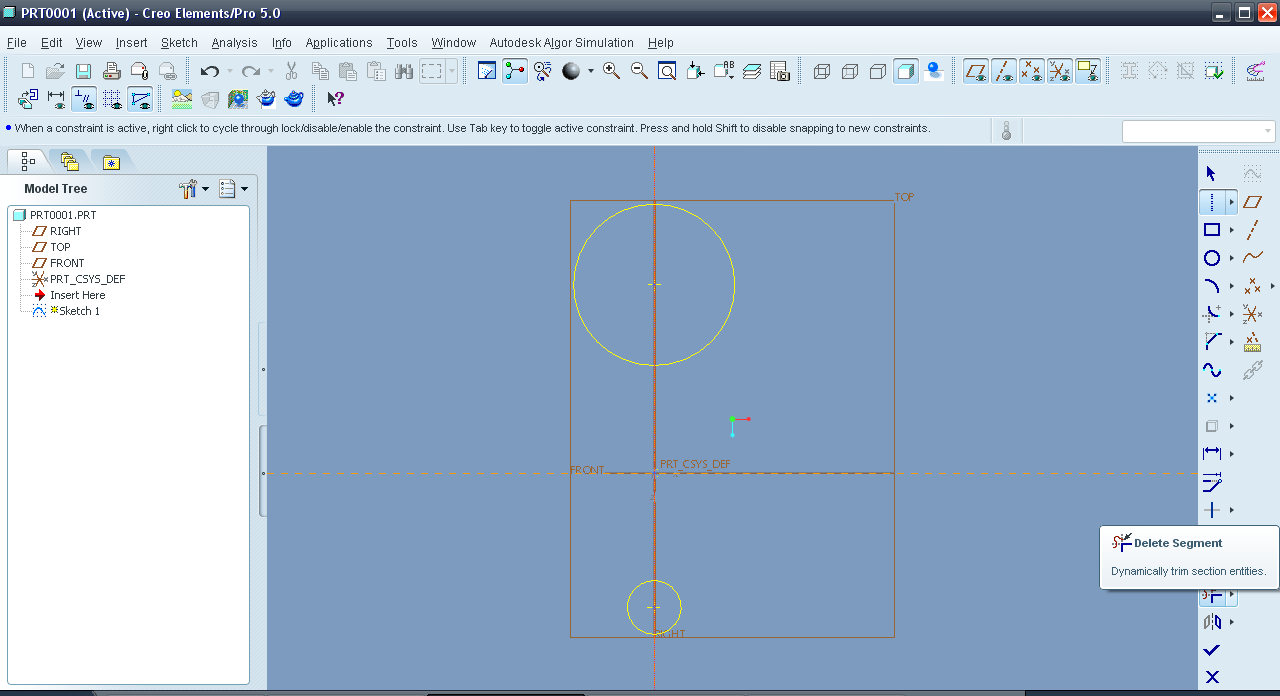
Step 8:
Choose Delete segment (Trim).
-
Step 9:
Trim down the circles to semi-circles.
-
Step 10:
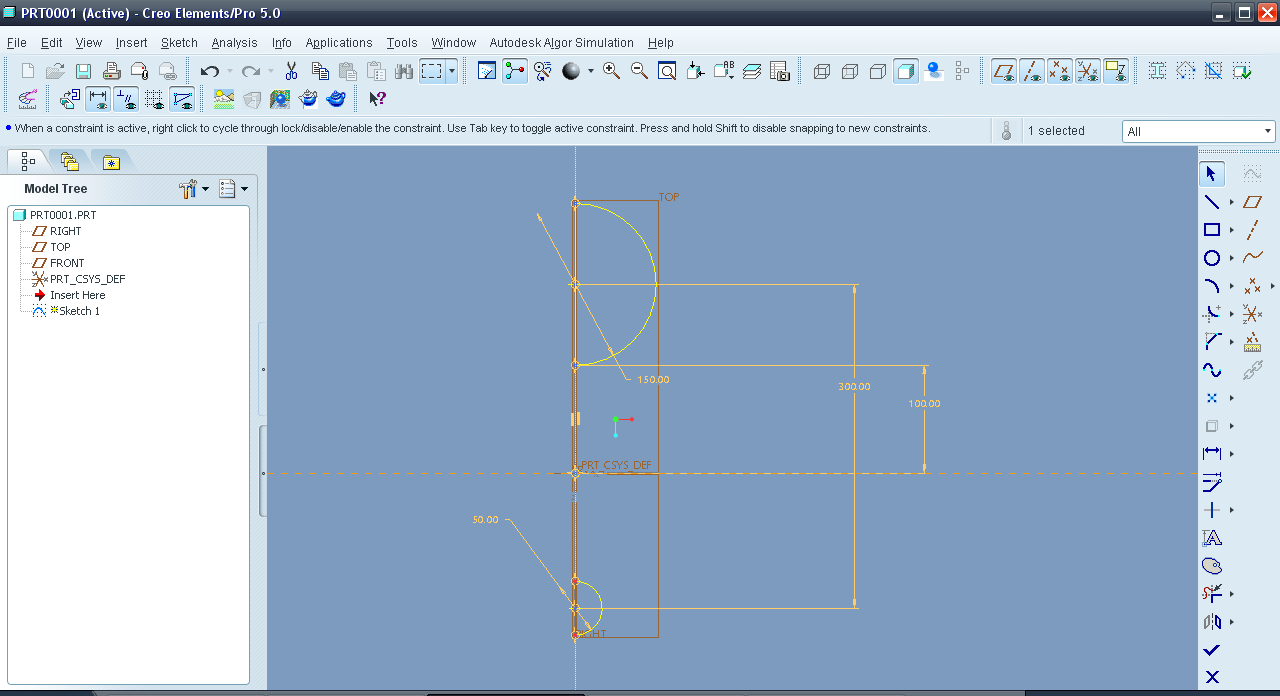
Draw lines enclosing the circles.
-
Step 11:
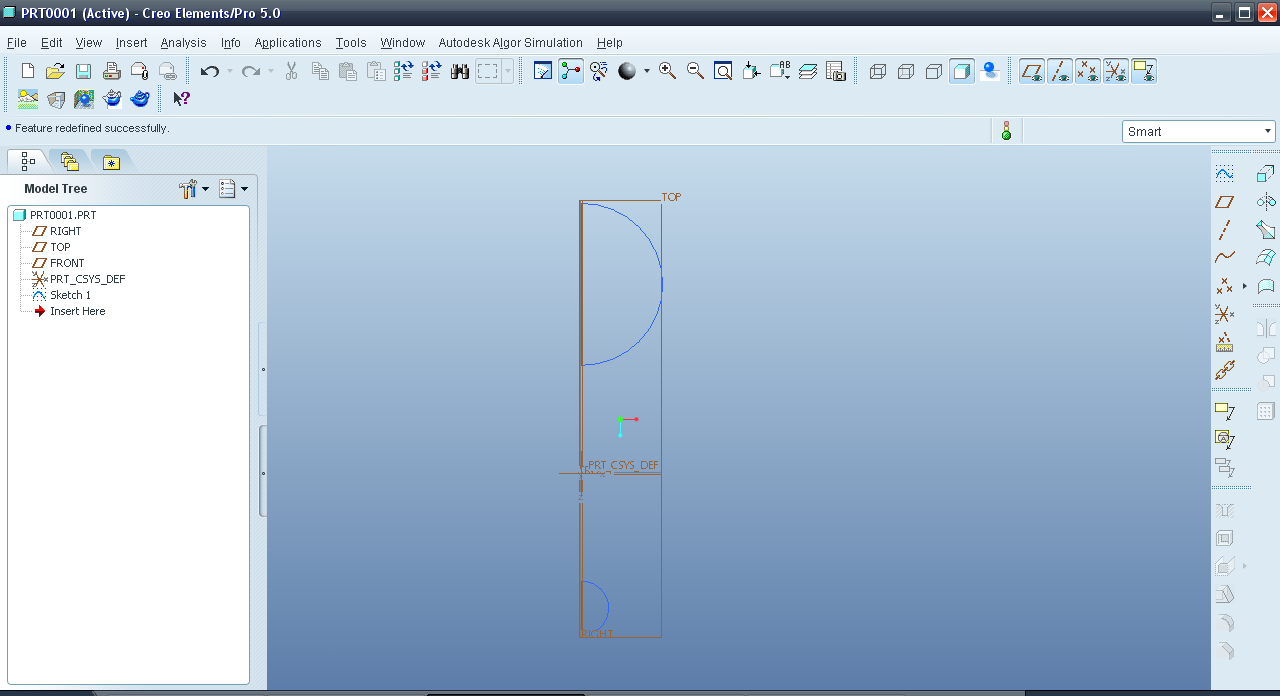
Exit the sketch.
-
Step 12:
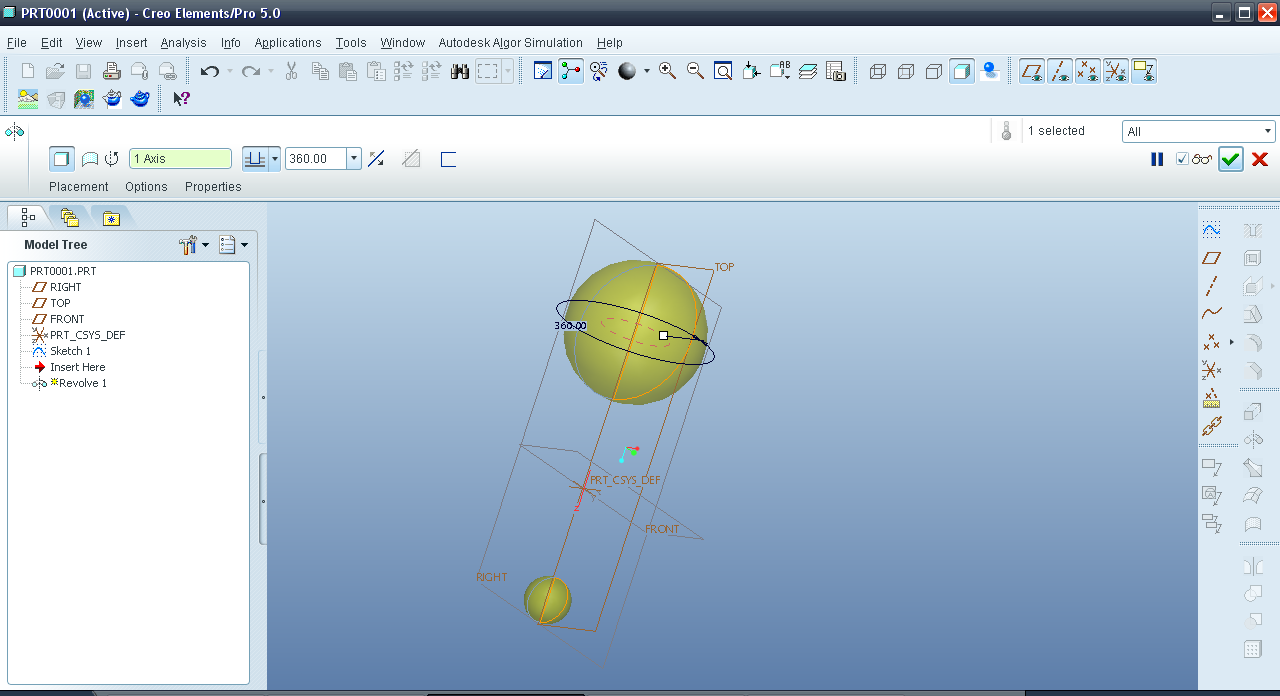
Revolve it along the Z-Axis.
-
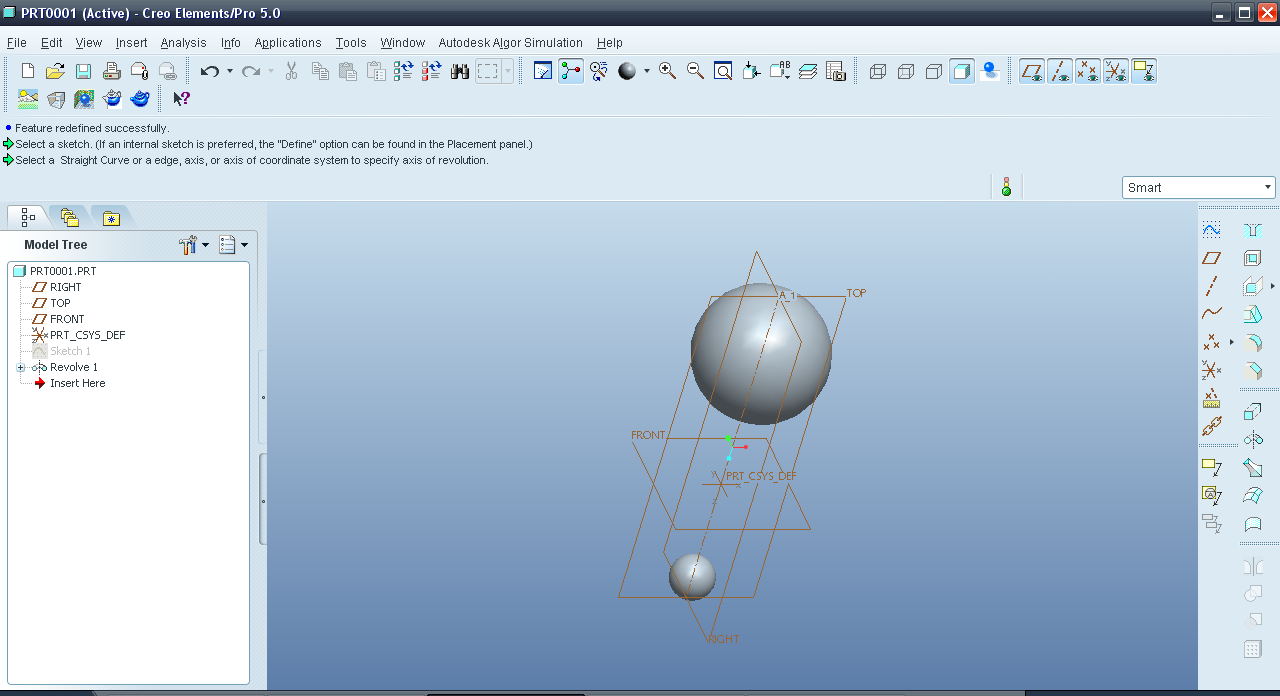
Step 13:
We have obtained the revolved two different bodies.
-
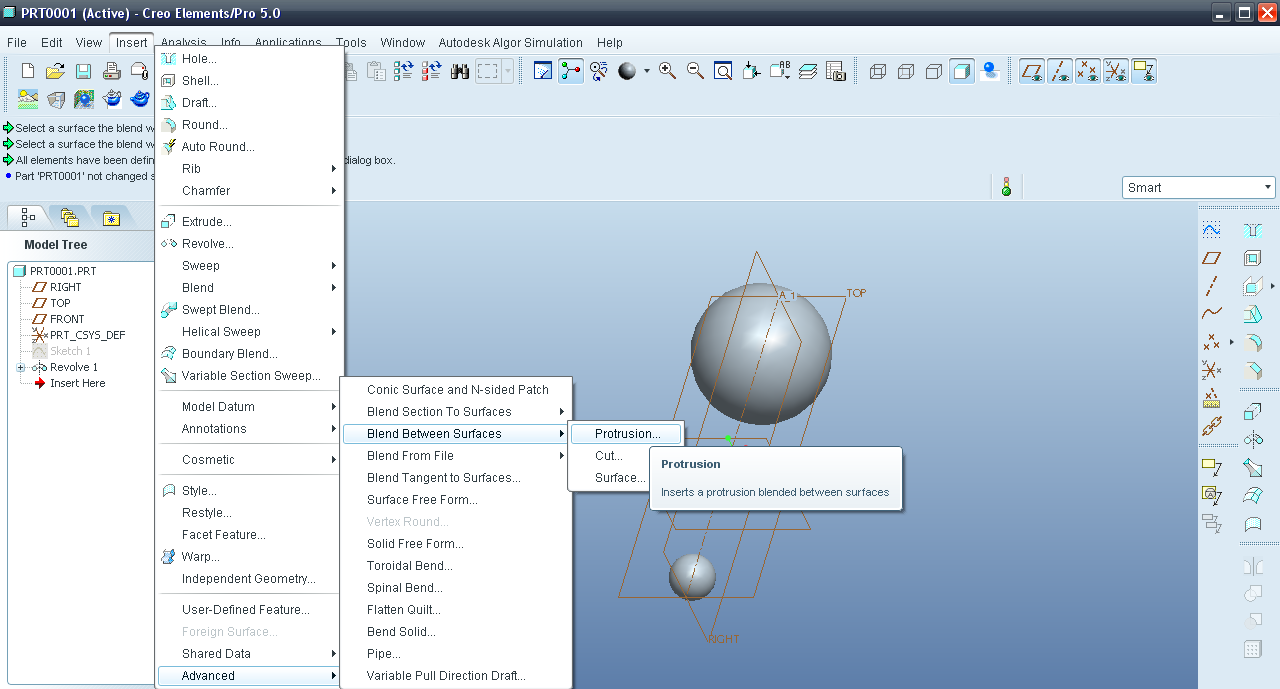
Step 14:
Insert menu>>Advanced>>Blend between surfaces>>Protusion.
-
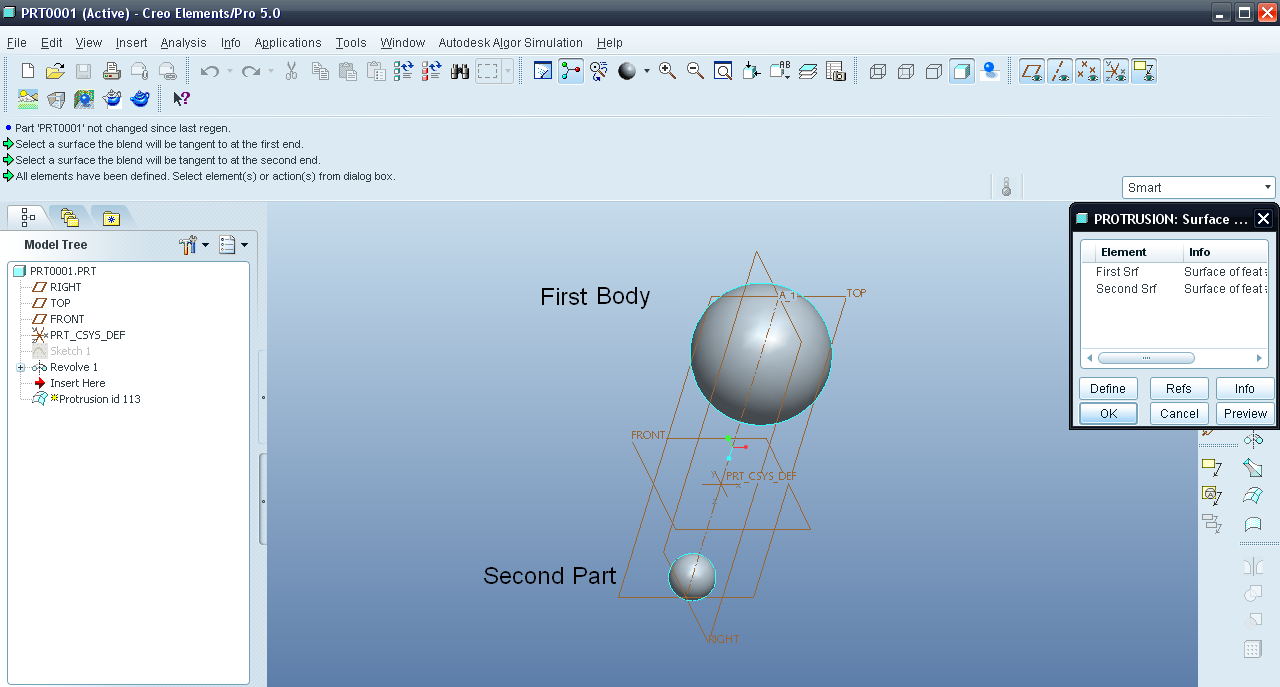
Step 15:
Select the two bodies.
-
Step 16:
Click OK (or you can just press the middle mouse button) and we have obtained a blended body.


