Learn about the GrabCAD Platform
Get to know GrabCAD as an open software platform for Additive Manufacturing
Visit our new homepage
Home
Control
Shop
Streamline Pro
Partner Program
Print
Community
Log in
Library
Challenges
Groups
Questions
Tutorials
Engineers
Blog
Log in
Learn from thousands of free Tutorials.
New user?
Join the community
or
log in.
Tutorials
Most liked all time
Recent
Most liked
Most viewed
Most commented
This week
This month
All time
Category
Design & CAD
Modeling
Drafting
Assemblies
BOM
Dimensioning / Tolerancing
Translations
Manufacturing & CAM
3D Printing
Tooling
NC Machining
Composites
Measurement / Inspection
Simulation & CAE
FEM
CFD
Kinematics
Process Simulation
Engineering Fundamentals
Theory
Process
Standards
Other
Software
Snagit
Alibre Design
ArchiCAD
AutoCAD
AutoCAD Electrical
Autodesk 3ds Max
Autodesk Alias
Autodesk Inventor
Autodesk Maya
Autodesk Revit
Autodesk 123D
BricsCAD
Bentley MicroStation
BlenderCAD
BobCAD-CAM
CATIA
Delmia
DraftSight
FreeCAD
Femap
Fusion 360
Geomagic Design
IronCAD
JT
Kompas-3D
KeyCreator
KeyShot
Lagoa
Luxology
Mastercam
Moi3D
NX Unigraphics
OBJ
Onshape
OpenSCAD
Parasolid
Powermill
Powershape
Pro/Engineer Wildfire
PTC Creo Parametric
PTC Creo Elements
Rhino
SpaceClaim
SOLIDWORKS
solidThinking Evolve
Solid Edge
SolidFace
STEP / IGES
SketchUp
STL
TopSolid
TinkerCAD
T-Flex CAD
TurboCAD
VectorWorks
ViaCAD 3D
VRML / WRL
ZW3D
GrabCAD Print
Rendering
GrabCAD Community
GrabCAD Workbench
Text file
3D Manufacturing Format
Cinema 4D
Other
Skill level
All levels
Beginner
Intermediate
Expert
adjust
×
How to prevent models from being cut in PhotoView 360
Yahya T Khedr
in
Other
11
0
Beginner
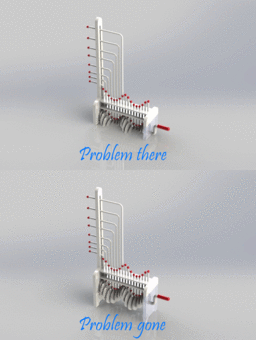
While rendering with PhotoView 360, the Final Render might show your model cut - from below - as if a plane sliced through it, although the Integrated Preview (in SolidWorks) shows your model perfectly. I had this issue a couple times, so I thought that others might have it too. So here I'll show you how to fix this problem.
adjust
floor
plane
restore
cut
rendering
photoview360
solidworks
CATIA V5 - Graphic properties colors compared to materials
3D Comparison
in
Translations
0
0
Beginner
In CATIA V5, graphic properties colors and materials are both used to control the visual appearance of a model. However, they have different purposes and effects. * *Graphic properties colors** are used to control the color of the lines, surfaces, and other graphical elements of a model. They can be applied to individual features or to the entire model. * *Materials** are used to control the appearance of the surfaces of a model, including their color, shininess, and transparency. They can be applied to individual features or to the entire model.
CATIA
adjust
change
properties
texture
materials
colors
apperance
How to edit lights in solidworks/how to adjust light in solidworks.
Pawan Kumar
in
Modeling
0
1
Beginner
How to edit lights in solidworks/how to adjust light in solidworks. Hello friends my name is Pawan Kumar and welcome to SOLIDWORKS PROJECTS channel. In this channel you learn about solidwork software. please subscribe my channel and follow us on social media Facebook : https://www.facebook.com/SOLIDWORKSPRO216/ Twitter : https://twitter.com/SOLIDWORKSPROJ1?s=09 #solidworks #lights #lightsedit #solidworksprojects #3dmodels
SOLIDWORKS
edit
light
adjust
how
lights
tutorial
projects
solidworks
CATIA V5 - How to add and configure Decals
3D Comparison
in
Translations
0
0
Beginner
The case study in the video is done on the Panton Chair, you can download it at the following link https://grabcad.com/library/panton-chair-82
CATIA
surface
projection
modify
adjust
change
texture
decals
sticker
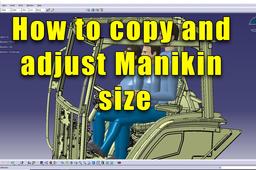
How to Copy and Adjust Manikin size
3D Comparison
in
Modeling
0
0
Beginner
Follow-up of my previous tutorial regarding the ergonomics of a tractor cabin
CATIA
adjust
size
manikin
catia v5
copy