Learn about the GrabCAD Platform
Get to know GrabCAD as an open software platform for Additive Manufacturing
Visit our new homepage
Home
Control
Shop
Streamline Pro
Partner Program
Print
Community
Log in
Library
Challenges
Groups
Questions
Tutorials
Engineers
Blog
Log in
Learn from thousands of free Tutorials.
New user?
Join the community
or
log in.
Tutorials
Most liked all time
Recent
Most liked
Most viewed
Most commented
This week
This month
All time
Category
Design & CAD
Modeling
Drafting
Assemblies
BOM
Dimensioning / Tolerancing
Translations
Manufacturing & CAM
3D Printing
Tooling
NC Machining
Composites
Measurement / Inspection
Simulation & CAE
FEM
CFD
Kinematics
Process Simulation
Engineering Fundamentals
Theory
Process
Standards
Other
Software
Snagit
Alibre Design
ArchiCAD
AutoCAD
AutoCAD Electrical
Autodesk 3ds Max
Autodesk Alias
Autodesk Inventor
Autodesk Maya
Autodesk Revit
Autodesk 123D
BricsCAD
Bentley MicroStation
BlenderCAD
BobCAD-CAM
CATIA
Delmia
DraftSight
FreeCAD
Femap
Fusion 360
Geomagic Design
IronCAD
JT
Kompas-3D
KeyCreator
KeyShot
Lagoa
Luxology
Mastercam
Moi3D
NX Unigraphics
OBJ
Onshape
OpenSCAD
Parasolid
Powermill
Powershape
Pro/Engineer Wildfire
PTC Creo Parametric
PTC Creo Elements
Rhino
SpaceClaim
SOLIDWORKS
solidThinking Evolve
Solid Edge
SolidFace
STEP / IGES
SketchUp
STL
TopSolid
TinkerCAD
T-Flex CAD
TurboCAD
VectorWorks
ViaCAD 3D
VRML / WRL
ZW3D
GrabCAD Print
Rendering
GrabCAD Community
GrabCAD Workbench
Text file
3D Manufacturing Format
Cinema 4D
Other
Skill level
All levels
Beginner
Intermediate
Expert
bounding_box
×
Solidworks bounding box
ergunay77
in
Modeling
1
0
Intermediate
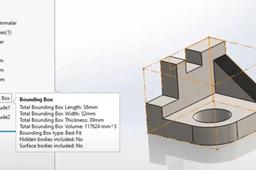
📦 **SolidWorks – Bounding Box Command Tutorial 🎯 **Purpose of the Bounding Box The **Bounding Box** is used to automatically generate a **virtual box** that represents the smallest rectangular box that can fully enclose a part or body. It's useful for: * 📐 Estimating raw material size * 📦 Packaging design * 📊 BOM automation (length, width, height) * 🧾 CNC programming / nesting 🔧 Where to Find the Bounding Box Command 🔹 **SolidWorks Version**: Available in SolidWorks 2018 and later 🔹 **Applicable To**: * Weldment parts (structural members) * Sheet metal parts * Bodies (in multibody parts) 📍 **Location:** * **Insert ➜ Reference Geometry ➜ Bounding Box** * Or, Right-click the **Cut List Item** or **Solid Body Folder** in FeatureManager Tree ➜ *Create Bounding Box* 🧰 **How to Use the Bounding Box Command ✅ Steps: 1. 🖱️ Right-click the **Cut List Item** or the **Solid Body Folder** (e.g., under a weldment or sheet metal part). 2. ➕ Click **Create Bounding Box**. 3. 📏 SolidWorks calculates and displays the smallest 3D box around the selected body. 4. 🧾 The box dimensions appear in the **Cut List Properties** automatically as: * `Bounding Box Length` * `Bounding Box Width` * `Bounding Box Thickness` (or Height) 📝 *Tip:* You can show these values in a drawing BOM using cut list properties. 📌 **Bounding Box Options | Option | Description | | ------------------------ | ------------------------------------------------------------------- | | 🔲 **Best Fit** | Default. Creates the smallest possible box, optimized to the shape. | | ↕️ **Custom Plane** | You can define a specific orientation or plane for the box. | | ✏️ **Manual Adjustment** | Not possible – the box is always auto-calculated by geometry. | 📐 **Using Bounding Box in Drawings 1. Create a **drawing** from the part. 2. Insert a **Cut List Table** (for weldments or sheet metal). 3. Add columns for: * `Bounding Box Length` * `Bounding Box Width` * `Bounding Box Thickness` 4. 🧾 These will auto-populate from the bounding box data. 🧪 **Example
SOLIDWORKS
bounding_box