Learn about the GrabCAD Platform
Get to know GrabCAD as an open software platform for Additive Manufacturing
Visit our new homepage
Home
Control
Shop
Streamline Pro
Partner Program
Print
Community
Log in
Library
Challenges
Groups
Questions
Tutorials
Engineers
Blog
Log in
Learn from thousands of free Tutorials.
New user?
Join the community
or
log in.
Tutorials
Most liked all time
Recent
Most liked
Most viewed
Most commented
This week
This month
All time
Category
Design & CAD
Modeling
Drafting
Assemblies
BOM
Dimensioning / Tolerancing
Translations
Manufacturing & CAM
3D Printing
Tooling
NC Machining
Composites
Measurement / Inspection
Simulation & CAE
FEM
CFD
Kinematics
Process Simulation
Engineering Fundamentals
Theory
Process
Standards
Other
Software
Snagit
Alibre Design
ArchiCAD
AutoCAD
AutoCAD Electrical
Autodesk 3ds Max
Autodesk Alias
Autodesk Inventor
Autodesk Maya
Autodesk Revit
Autodesk 123D
BricsCAD
Bentley MicroStation
BlenderCAD
BobCAD-CAM
CATIA
Delmia
DraftSight
FreeCAD
Femap
Fusion 360
Geomagic Design
IronCAD
JT
Kompas-3D
KeyCreator
KeyShot
Lagoa
Luxology
Mastercam
Moi3D
NX Unigraphics
OBJ
Onshape
OpenSCAD
Parasolid
Powermill
Powershape
Pro/Engineer Wildfire
PTC Creo Parametric
PTC Creo Elements
Rhino
SpaceClaim
SOLIDWORKS
solidThinking Evolve
Solid Edge
SolidFace
STEP / IGES
SketchUp
STL
TopSolid
TinkerCAD
T-Flex CAD
TurboCAD
VectorWorks
ViaCAD 3D
VRML / WRL
ZW3D
GrabCAD Print
Rendering
GrabCAD Community
GrabCAD Workbench
Text file
3D Manufacturing Format
Cinema 4D
Other
Skill level
All levels
Beginner
Intermediate
Expert
layers
×
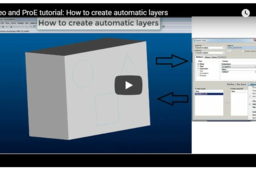
How to create automatic layers
Vladimir Palffy
in
Modeling
0
0
Beginner
With ProE and Creo is possible to create a lot of features and manage visibility in the drawing mode. In this video tutorial you will learn how to setup custom automatic layers and use different visibility for different drawing views
PTC Creo Parametric
how
automatic
layers
Layer command in autocad || Layers toolbar || Layer in Autocad
S Satish kumar
in
Drafting
0
0
Beginner
Hey guys in this video i explain how to use layer command in autocad 2020.I also explain what are the use of layers toolbar in Autocad. By using some example i have explain it such as 2d floorplan and a 3d screwjack. Keyword: How to use layer in Autocad How to use layers toolbar in autocad What is the use of layer command in autocad benefits of layer command in autocad layer in Autocad layer toolbar --------------------------------------------------------------------------------------------------------------------------- If u like this video make sure to subscribe my channel and don't forget to hit the bell icon. --------------------------------------------------Thank you--------------------------------------------------------
AutoCAD
benefits
what
how
use
command
layer
autocad
toolbar
layers
How to save your changes in AutoCAD?
Karajko CAD
in
Drafting
0
0
Beginner
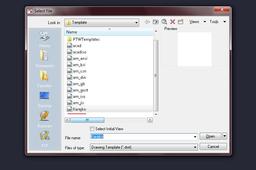
This time you will learn how to save any change you made in AutoCAD as a drawing template.
AutoCAD
layers
templates
autocad
Creating layers in AutoCAD
Na. Karma
in
Design & CAD
0
0
Beginner
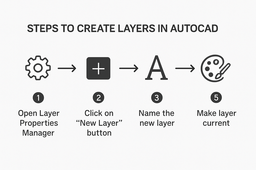
Creating layers in AutoCAD is a fundamental practice that helps you keep your drawings organized and easier to manage. Layers act like transparent sheets stacked on top of each other, where each sheet can hold different types of objects. By assigning objects to specific layers, you can control their visibility, color, linetype, and other properties independently, which improves both the clarity and efficiency of your work. Layers are especially useful in complex drawings where many objects coexist, such as architectural plans, engineering diagrams, or mechanical designs. For example, you might place walls on one layer, electrical wiring on another, and plumbing on a third. This separation allows you to hide or lock layers you aren't currently working on, reducing visual clutter and preventing accidental edits. Benefits of Using Layers: Visibility Control: You can toggle layers on or off to display only relevant parts. Color and Linetype Management: Assigning colors and line styles to layers helps differentiate object types visually. Editing Efficiency: Lock or unlock layers to protect certain elements from changes. Organization: Keeps your project structured, making collaboration and revisions smoother. Simple Procedure to Create Layers in AutoCAD: Open the Layer Properties Manager by clicking the Layers panel or typing LAYER in the command line. Click on the New Layer button (+ icon) to create a new layer. Name your layer with a descriptive title (e.g., Walls, Electrical, Furniture). Assign a color to the layer to visually distinguish it in your drawing. Set the linetype if you want lines in this layer to appear dashed, dotted, etc. Adjust the layer’s visibility or lock status as needed. Assign objects to the new layer by selecting them and changing their layer property.
AutoCAD
line types
visibility control
drawing organization
layer managem
cad drawing
creating layers
layers
autocad
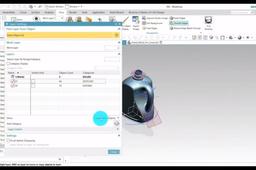
How to Control Objects with Layer in Siemens NX
Shuvam Kumar
in
Modeling
0
0
Intermediate
When You Have a small number of object, you can manage the objects by using the Show & Hide command. However, when modeling required a huge number of object to be managed on the screen, the show and hide command is not sufficient.in this case, you will use the layers. https://youtu.be/9bq9swwpjS4
NX Unigraphics
into
copy
control
move
nx
siemens
category
settings
layer
layers