Learn about the GrabCAD Platform
Get to know GrabCAD as an open software platform for Additive Manufacturing
Visit our new homepage
Home
Control
Shop
Streamline Pro
Partner Program
Print
Community
Log in
Library
Challenges
Groups
Questions
Tutorials
Engineers
Blog
Log in
Nanthakumar R
A Mechanical Engineer, Proficient in Design and Drafting Services ; Available to Freelancing projects
Follow
Hire me
37
followers
India
Tutorials
About
Models
74
Tutorials
4
More
Followers
37
Following
8
Likes
44
Following
8
Followers
37
Likes
44
Tutorials
Sort by:
Recent
Recent
Most liked
Most viewed
Most commented
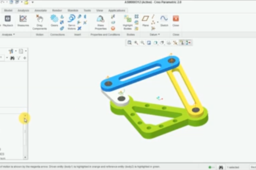
Tutorial : How to Make a Simple Rocker Mechanism?
Nanthakumar R
in
Process Simulation
0
0
Expert
https://www.youtube.com/watch?v=P68nC1oARSw
mechanism
simulation
creo
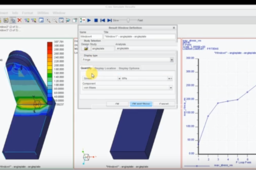
Simple Tutorial : Structural analysis in Creo
Nanthakumar R
in
FEM
1
0
Expert
https://www.youtube.com/watch?v=ZhhiUZ1HwRE
simulate
creo
simulation
fem
How to Create a Universal Joint Mechanism
Nanthakumar R
in
Process Simulation
0
0
Intermediate
How to Create a Universal Joint Mechanism https://youtu.be/tDAkjtOlSIE
https-youtu-be-tdakjtolsie
Tutorials - How to make a Involute Spur Gear
Nanthakumar R
in
Modeling
1
0
Expert
Tutorials - How to make a Involute Spur Gear Initially Take a Note on spur gear dimensions as follows Module = 4mm Number of teeth =39 Pitch Circle Diameter =156 mm Pressure Angle =20 Deg Addendum Circle Diameter =167.4 mm Root Diameter = 149.70 mm Dedendum Circle Diameter =130 mm Hole size 80 mm Tooth thickness =6.28mm Base Circle Diameter =156cos(20)=146.592mm Step 1 • Select the Front plane • Draw 130mm (Dedendum Circle Diameter) Diameter circle and a Hole 80mm Diameter circle • Extrude 50 mm Step 2 Draw three circles vice the diameters are • Addendum Circle Diameter =167.4 mm, • Pitch Circle Diameter =156 mm, • Base Circle Diameter =156cos(20)=146.592mm Step 3 For involute curve we need to put some parametric equations as follows Follow the procedure and paste the equations Menu bar - Insert - Model datum – Curve - In the menu manager - From equation - Done Now the select the PRT_CSYS_DEF and Cartesian (a notepad box will open) Just paste the following equations without modify anything.., Base_circle_radius=146.592/2 Angle=t*90 Cir_len=(PI*Base_circle_radius*t)/2 X_ins=Base_circle_radius*cos(Angle) Y_ins=Base_circle_radius*sin(Angle) X=X_ins+(Cir_len*sin(Angle)) Y=Y_ins-(Cir_len*cos(Angle)) Z=0 (Note : Here 146.592/2 mm is Base Circle Radius) File - Save - Close notepad -Preview - OK Now you see the curve Step 4 (Note : Tooth thickness=6.28mm on pitch circle) • Again Go to sketcher using previous sketching plane (Take references before draw ) • Menu bar/right click Sketcher - References • Pick the curve and the middle circle as references Then draw a center point arc with radius of 6.28 mm on the middle circle and the starting point should start from the curve. Take a point on the curve at middle Exit Sketcher Then Datum point - Select the curve - offset = .50 Step 5 Now we make a datum plane passing through this point and the central axis. Then we reflect the curve about datum plane Datum plane - Select the point and the axis - OK Now Datum plane created. Select the curve we draw via the formula and mirror it with reference to Datum plane Now we use the curve to define the tooth profile Steps Sketcher - the create an entity from edge option from tool bar - Select the two curves Sketch - References select the three circles. Select the references as shown in the figure. Draw the two connecting lines and two center point arc as shown in figure. Then trim the unnecessary lines to make the profile. (Note : The profile must be closed at the end) Finally extrude the profile and pattern it about the central axis. Hide all the unnecessary curves Well the Involute spur gear is formed successfully.
PTC Creo Parametric